Importing profiles from Sales Navigator to Aware with Apollo
Let’s say you want to get a list of LinkedIn profiles from a Sales Navigator view, into Aware. How do you do this?
There’s no direct connector between these two tools, but you can use Apollo (or ZoomInfo, or Lusha, or any similar tool, with slightly different steps) to accomplish this.
What You’ll Need:
Apollo.io account & Chrome extension installed
LinkedIn Sales Navigator access
Excel or Google Sheets
Access to useaware.co on the Pro or Power User tier with permissions to upload profiles to a custom list
Steps To Import Profiles
1. Open a Sales Navigator Search
Go to LinkedIn Sales Navigator.
Run a search using your desired filters (e.g., job title, industry, location, etc.).
Make sure the results are real people (not fake/incomplete profiles).
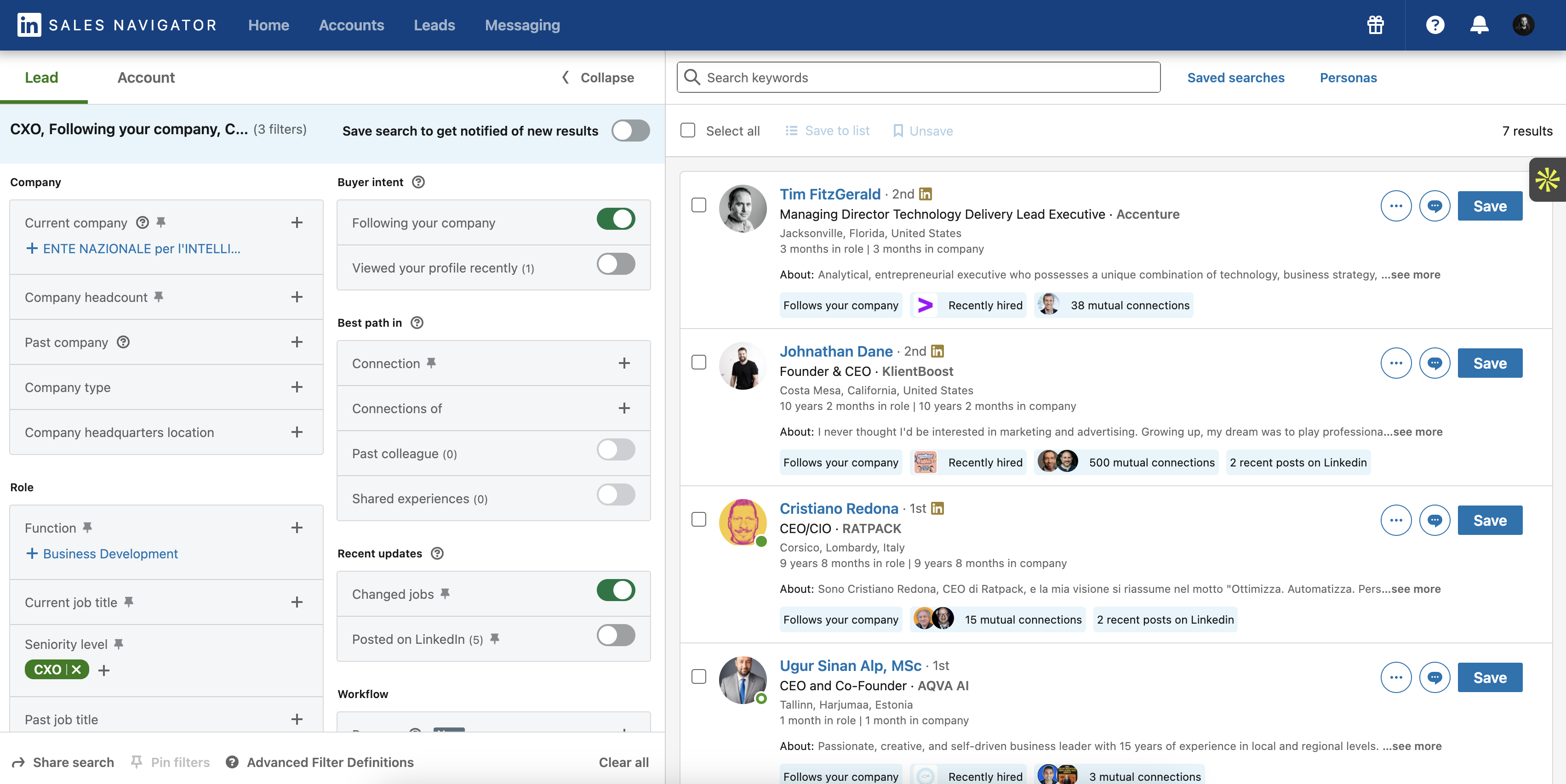
An example Sales Navigator Lead Search
2. Launch the Apollo.io Chrome Extension
With the search results open, click the Apollo icon in your Chrome toolbar.
It should load a sidebar with a list of detected profiles.
Wait for it to populate—might take a few seconds.
3. Select and Export
Select all (or a subset) of the visible profiles in Apollo.
Click “Add to List” or similar if prompted (this saves the contacts to Apollo) and give the list a descriptive name.
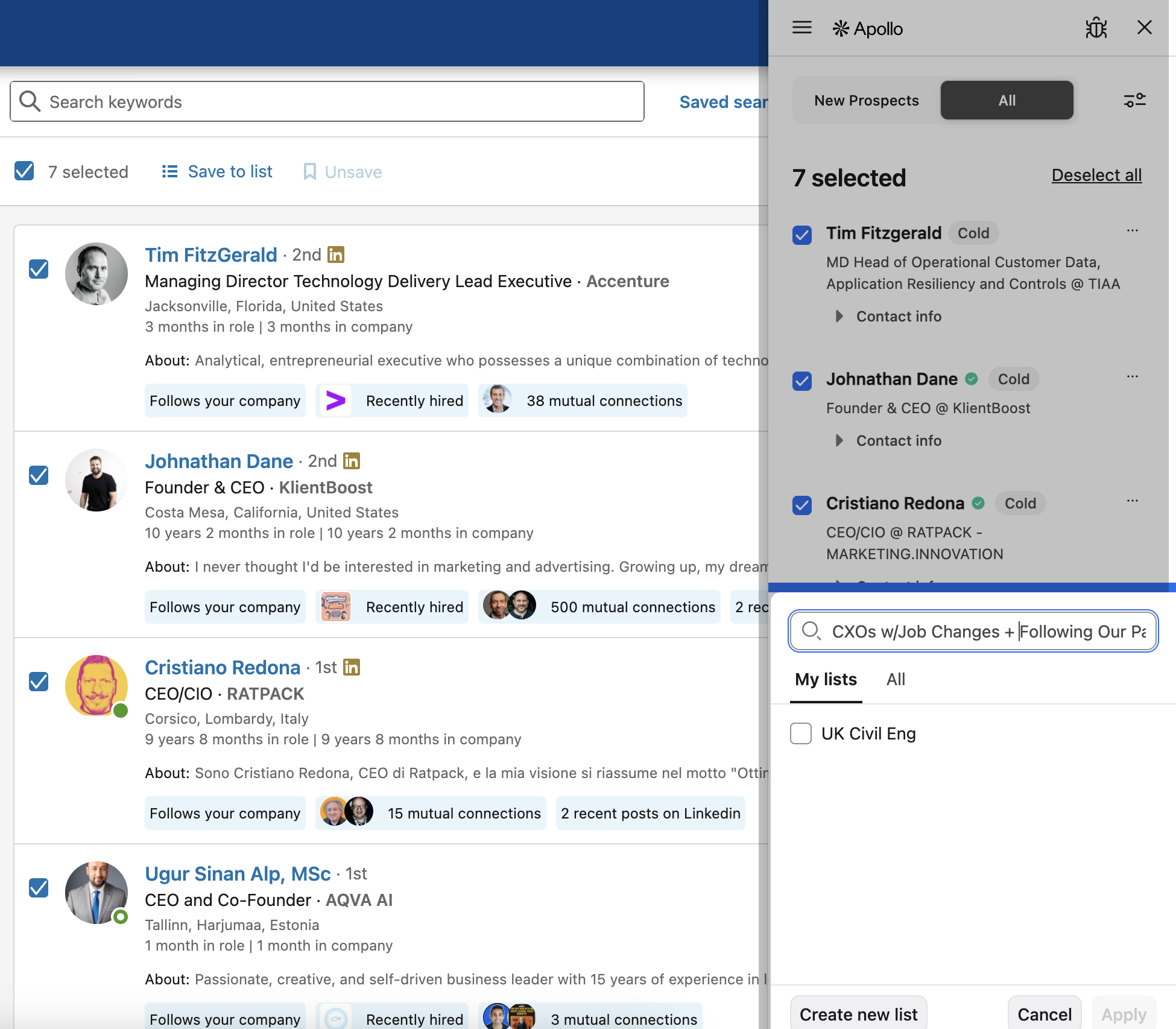
4. Export the List from Apollo
In Apollo, open the saved list of contacts.
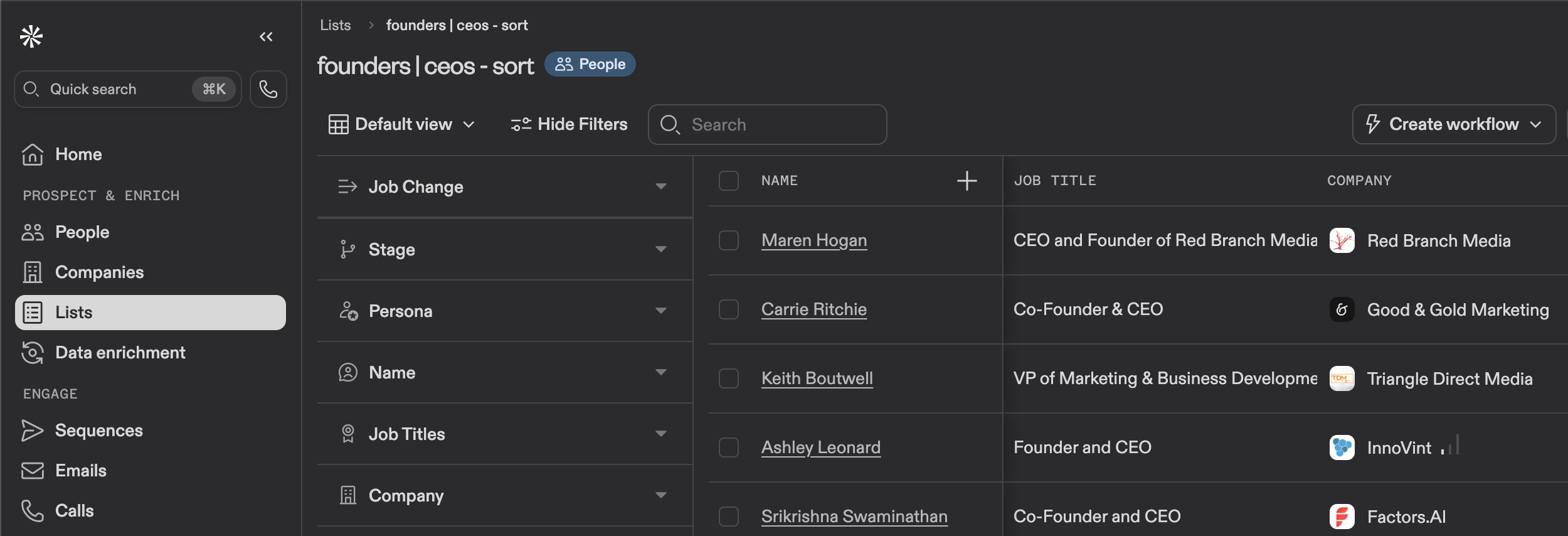
An example Apollo.io contact list search page
Click Select All > Export (CSV format).
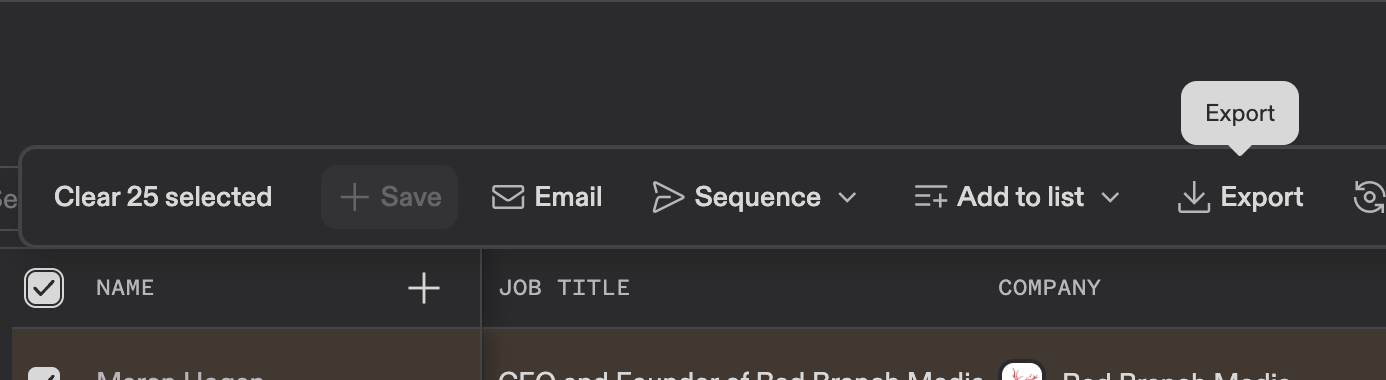
Selecting and exporting contacts
Be sure to include at least the LinkedIn profile field in the export settings (this is set to “On” by default)
5. Extract Public LinkedIn URLs
Open the CSV in Excel or Google Sheets.
Look for a column like
Personal LinkedIn Profile, or something similar if you’ve renamed it: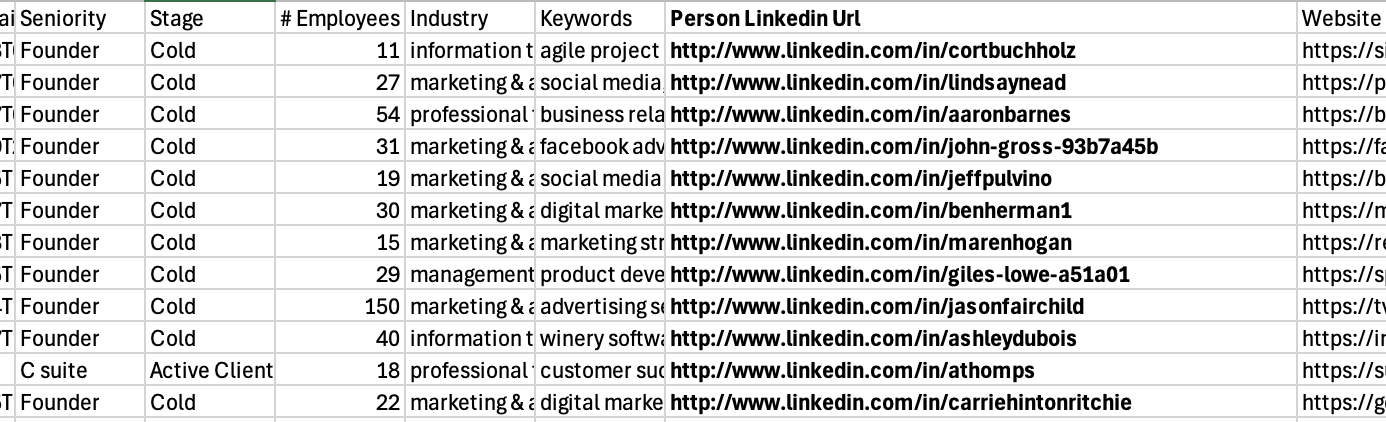
Where the URL can be found in the CSV file
7. Upload to Aware
Log into app.useaware.co > Engagement Feeds > Custom Feeds > Add/Edit.
Click a list to open it, or create a new one.
Choose "Bulk Upload":
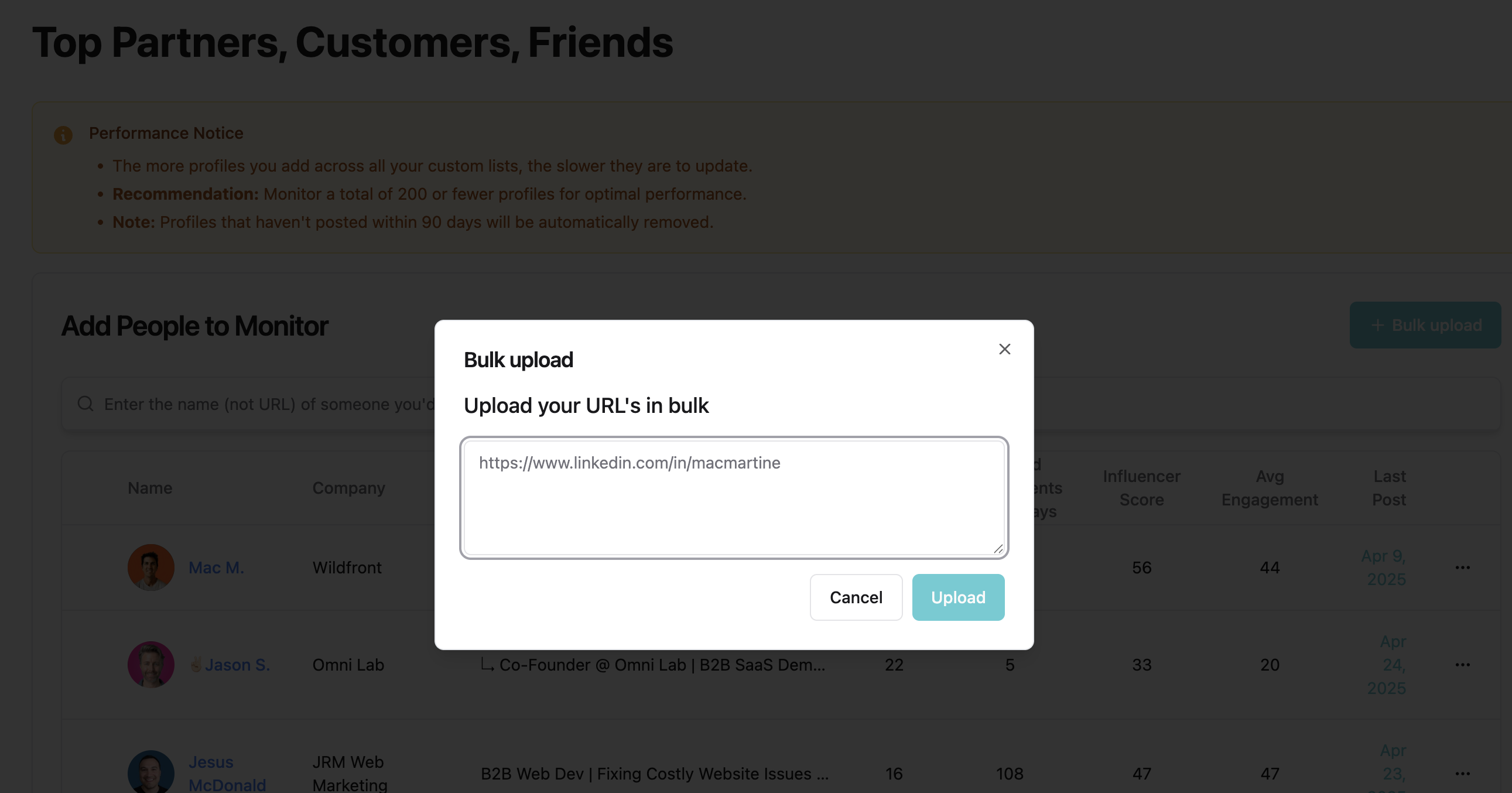
Bulk uploading profiles to CSV
Copy the Profile URLs only from the column in the exported Apollo.io CSV you downloaded, to the bulk upload box
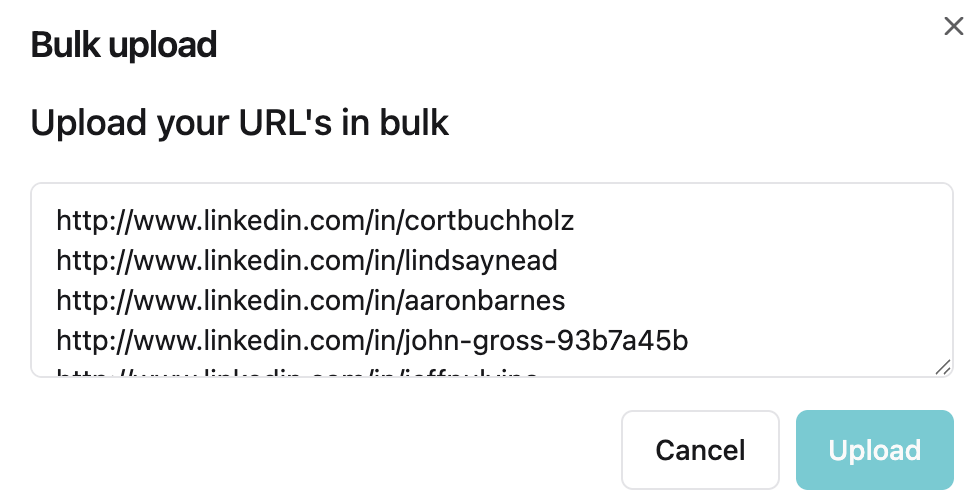
What it looks like when you've bulk uploaded URLs
✅ Done!
One more step, which is… wait a bit :)
Note that you will likely see “N/A” data and blank profile pictures for some or even most of your uploaded Profile URLs, if we have not encountered these URLs before. Don’t worry; we’ll visit them soon and pick them up! This happens within a few hours, sometimes up to a few days for a very large list.
After that: your list is now live in Aware and ready for outbound engagement!